

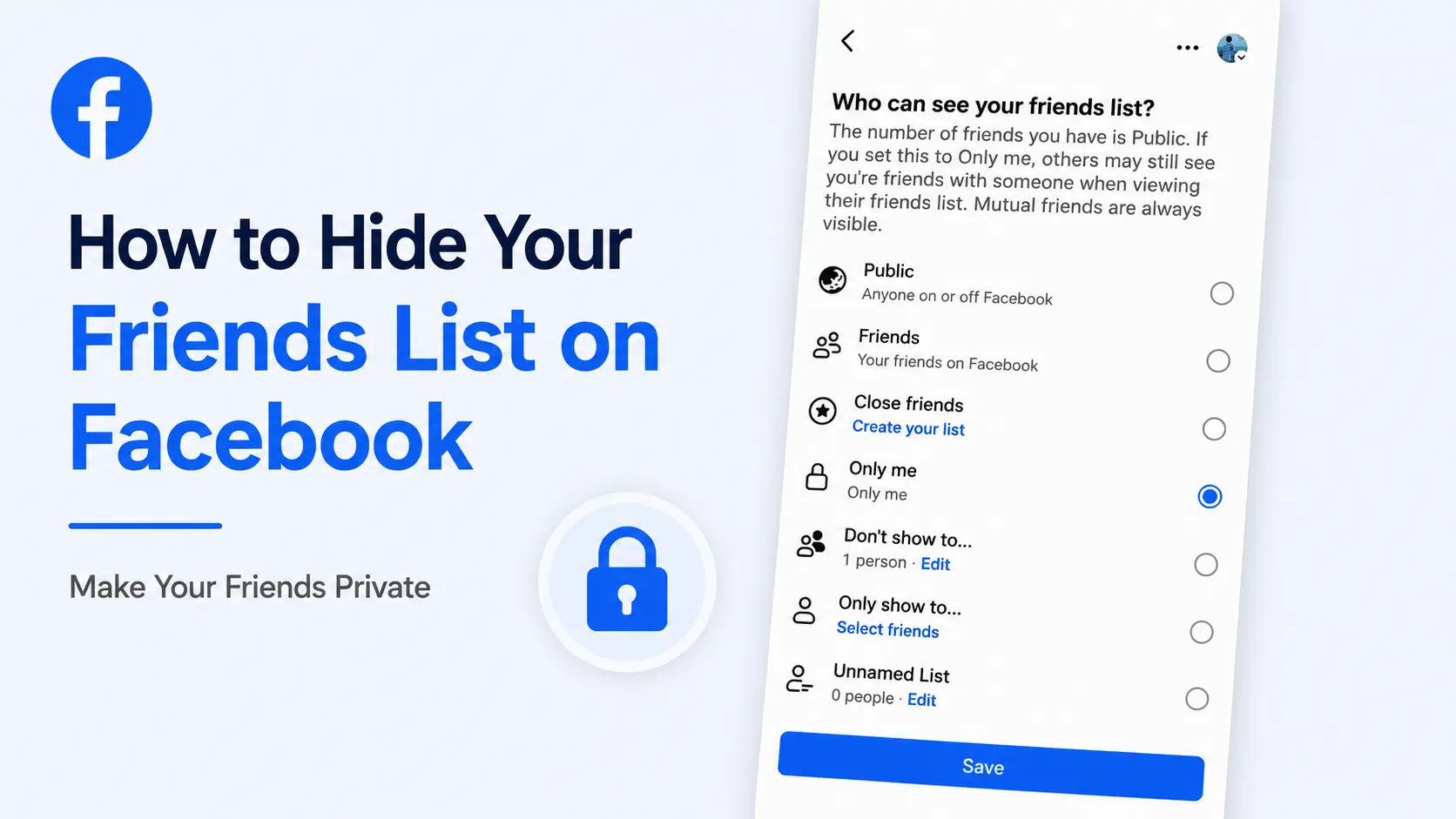
Your Facebook friends list can reveal more about you than you might think. Even if your posts are private, people may still be able to browse the people you are connected with.
The good news is that Facebook (FB) allows you to hide your friends list on Facebook. You can make it visible to everyone, limit it to friends, choose specific people or hide your full friends list from everyone except yourself.
In this blog article, you will learn how to hide your friends list on Facebook using the mobile app and a computer. We will also explain an important limitation, hiding your friends list does not necessarily hide every individual friendship everywhere on Facebook.
📝Quick answer: Go to Facebook Settings → Audience and visibility → How people find and contact you → Who can see your friends list? Then choose Only me if you want to hide your full friends list from everyone else.
How to Hide Your Friends List on Facebook App
You can change your friends list privacy from the Facebook app on both Android and iPhone. The steps to do so are very simple. Exact steps to hide your friends list on Facebook are mentioned below.
🎯Tested by Medzix: We verified these steps using the latest available version of Facebook at the time of writing.
However, the exact position of some buttons may look slightly different depending on your device and Facebook app version but the privacy setting itself is located under Audience and visibility.
Step 1: Open the Facebook app and make sure you are logged into the account whose friends list you want to hide. If you haven’t, enter your login credentials and login to your FB account.
Step 2: Tap on the horizontal three lines available at the top left corner to open the menu. (Depending on your device and version of Facebook, this may appear as your profile picture with menu lines.)
Step 3: Scroll down and tap “Settings & Privacy”, a new menu will open up. Select the “Settings” option.
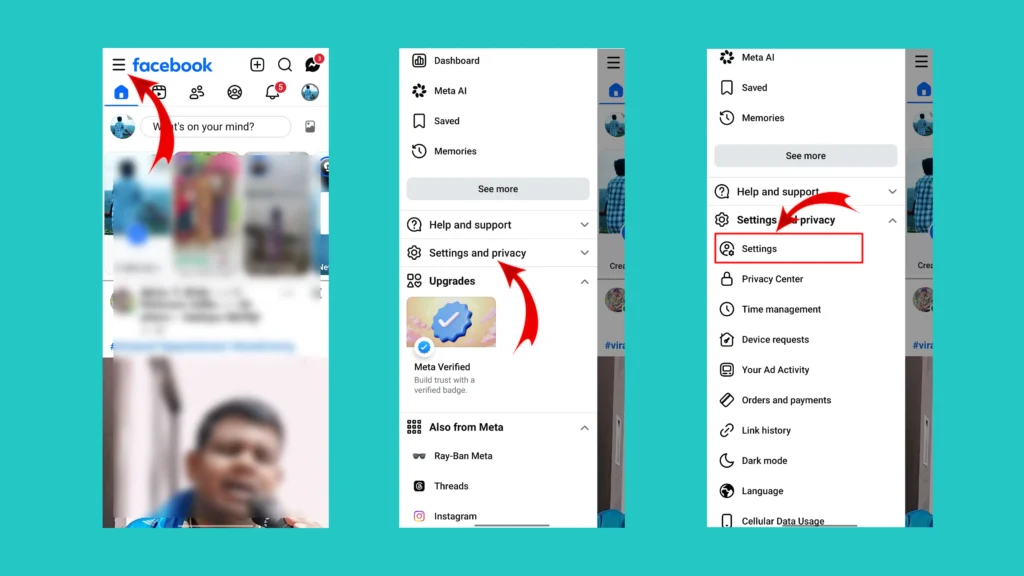
Step 4: Scroll until you see the Audience and visibility section. Then tap the “How people find and contact you” option.
Step 5: Look for “Who can see your friends list?” and tap it.
Step 6: To hide your full friends list from everyone else, select “Only me”. Facebook states that if you select “Only me”, only you can see your full friends list on your profile.
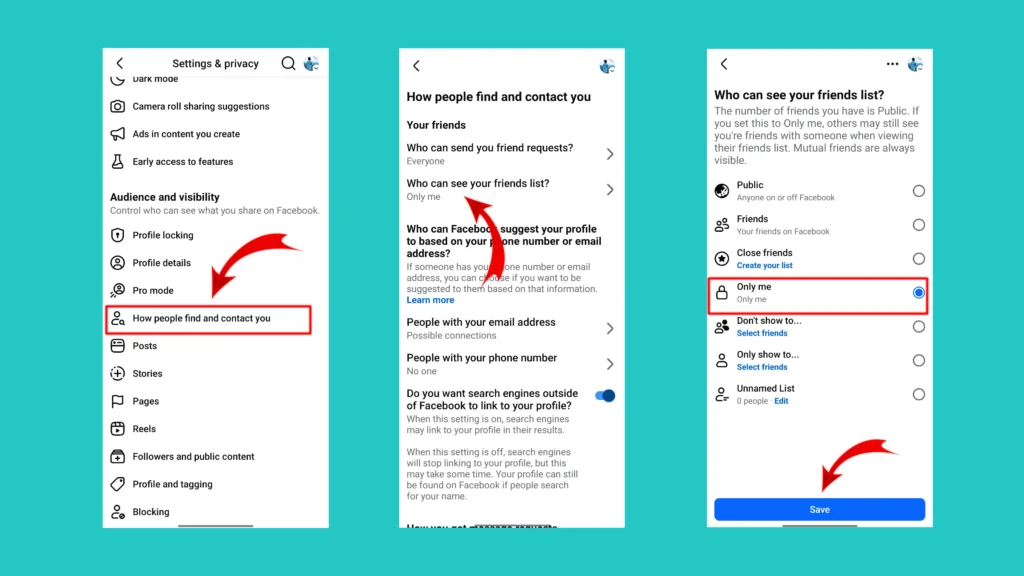
That’s it. Your complete Friends section should now be hidden from other people visiting your profile.
Related Article: Does Facebook Notify Screenshots?
How to Hide Your Friends List on Facebook Using a Computer
If you use Facebook on a laptop or desktop computer, you can change the same setting from Facebook’s website. The steps to follow on your desktop are outlined below.
- Open Facebook in your web browser and log into your account.
🌐Facebook Login Page: https://www.facebook.com/
- Click your profile picture in the top-right corner. Then select “Settings & privacy” and click on the “Settings” option.
- Scroll down the left sidebar menu and find the “Audience and visibility” section. Under this section, click on the “How people find and contact you” option.
- Click on the “Who can see your friends list?”.
- Choose the suitable option according to your needs.
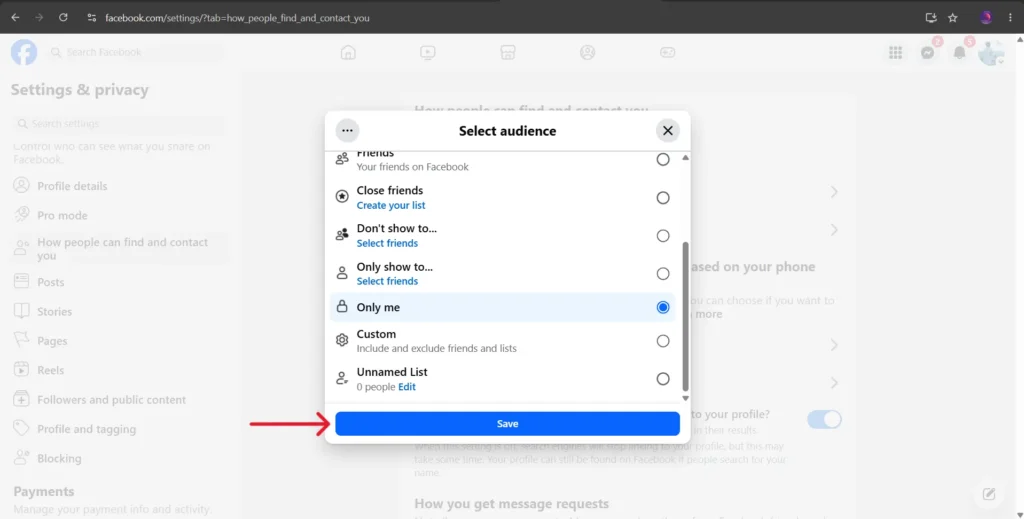
You can choose Only me to hide your complete friends list from everyone else. Facebook also allows you to select a different audience if you want to share the list with certain people.
Which Option Should You Choose?
When you open the Who can see your friends list? setting, Facebook gives you several options to control who can view your friends list.
The available options may include:
- Public
- Friends
- Close Friends
- Only me
- Don’t show to…
- Only show to…
- Unnamed list
Looking at these you might get confused. Don’t worry, lets understand what each option means.
| Option | Who can see your friends list? |
| Public | Anyone who can view your Facebook profile |
| Friends | All of your Facebook friends |
| Close Friends | Only the people included in your Close Friends list |
| Only me | Only you can see your full friends list |
| Don’t show to… | Everyone in the selected audience except the people you choose |
| Only show to… | Only the specific people you select |
| Unnamed list | The people included in that particular custom friend list |
If you want maximum privacy, select “Only me”. This prevents other people from viewing your full Friends section from your profile.
If you want to share your friends list with only a small group of people, options such as Close Friends, Don’t show to…, Only show to…, or a custom list can give you more control.
How to Hide Your Friends List From One Person
Yes, you read it right. If you don’t want to hide your friends list from everyone but from some specific person then you can use options such as “Don’t show to…”. The steps to use the “Don’t show to…” option are mentioned below.
- Follow the steps 1 to 5 that are mentioned above under the heading “How to Hide Your Friends List on Facebook App”.
- Tap on the “Don’t show to…” option. Your Facebook friend list will open up.
- Select the friends to whom you don’t want to show your friend list.
- Tap on the “Done” option available at the bottom to save your selections.
- Finally, tap on the “Save” option to save your settings.
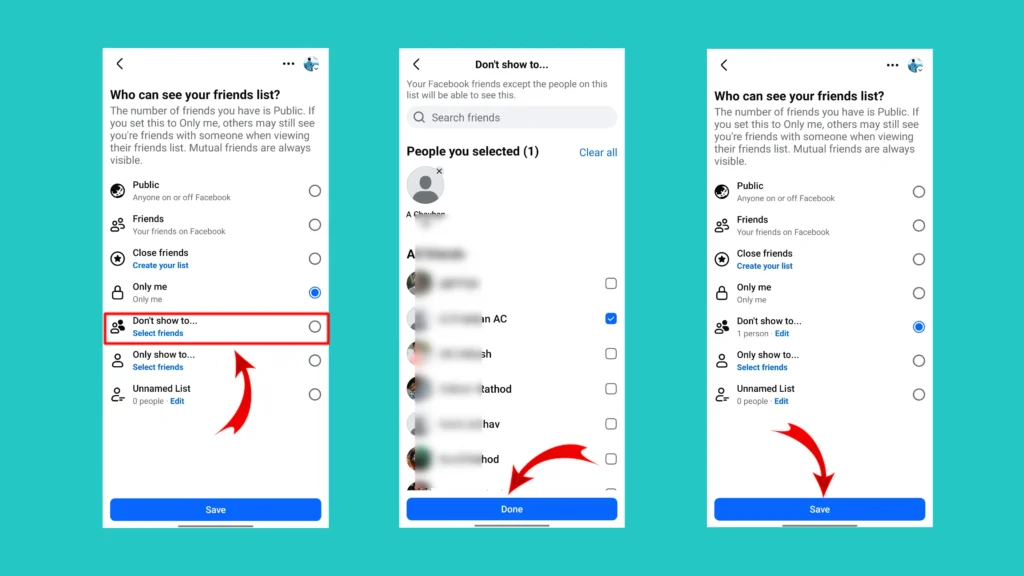
This allows you to exclude selected people. For example, you could keep your friends list visible to your Facebook friends while hiding it from one particular person.
Another useful option is “Only show to…”. This allows only selected people to view your friends list. This can be useful if you want more control instead of choosing between completely public and completely private.
What Happens When You Hide Your Friends List?
Setting your friends list to Only me does not mean your connection with every friend becomes completely invisible everywhere on Facebook. Facebook says that you can control who sees your Friends section on your own profile but your friends control the visibility of friendships on their profiles.
🎯For example: Imagine you and Medzix are Facebook friends. You set your friends list to Only me. Someone visiting your profile will not be able to browse your full friends list. However, if Medzix has their friends list set to Public, people may still be able to see that you and Medzix are friends from Medzix’s profile.
Facebook also notes that friendships visible elsewhere may appear in places such as Feed or Search. So, hiding your friends list gives you control over your Friends section. It does not give you complete control over how every other person displays their own Facebook connections.
Related Article: How to Change Group Name on Facebook
Can People Still See Mutual Friends?
Yes, they may still be able to see mutual friends. Facebook specifically notes that people can see mutual friends when they visit your profile, even when you restrict access to your full Friends section.
🎯For example: You and John are friends. Your friend Sarah is also friends with John. Someone who is connected to both of you may still see that Sarah is a mutual friend.
This is one of the most important things to understand before changing your privacy setting. Hiding your friends list does not necessarily remove all evidence of your Facebook connections. It simply prevents people from opening your profile and viewing your complete list of friends.
Conclusion
Hiding your friends list on Facebook is a simple privacy change, but it is important to understand exactly what it does.
Setting your Friends section to Only me prevents other people from viewing your complete list directly from your profile. If you only want to hide it from the public, choosing Friends may be enough. You can also use more selective audience options if they are available on your account.
However, don’t expect the setting to make every friendship completely invisible across Facebook. Other people may still see mutual friends and your friends control how their own connections are displayed.
For most users who simply want to stop strangers from browsing their Facebook connections, setting “Who can see your friends list?” to “Only me” is the most straightforward option.
Frequently Asked Questions (FAQs)
How do I hide my friends list on Facebook?
Go to: Settings → Audience and visibility → How people find and contact you → Who can see your friends list?
Then choose Only me to hide your full Friends section from everyone except yourself.
Can I hide my friends list from everyone?
Yes. Choose Only me in the friends list privacy setting. Facebook states that only you will be able to see your full friends list on your profile when this option is selected.
Can people still see my mutual friends?
Yes, Facebook notes that people may still see mutual friends when they visit your profile.
Can someone still see that I’m friends with another person?
Possibly. Your privacy setting controls the Friends section on your profile, but your friend controls the visibility of their friendships on their own profile. A visible friendship may also appear in other places on Facebook.
How do I hide my friends list from one person?
Look for an audience option such as “Don’t show to…” and select the person you want to exclude from viewing your Friends section.
The exact audience options can vary depending on your Facebook interface.
Does hiding my friends list remove my friends?
No. It only changes who can see your Friends section.
Can I make my friends list public again?
Yes. Return to the same privacy setting and select a different audience, such as Public or Friends.
Why can’t I find the “Who can see your friends list?” option?
Facebook occasionally changes the appearance and organization of its settings. Try using the Settings search function and search for friends list or How people find and contact you. The current setting is documented by Facebook under the Audience and visibility area.