

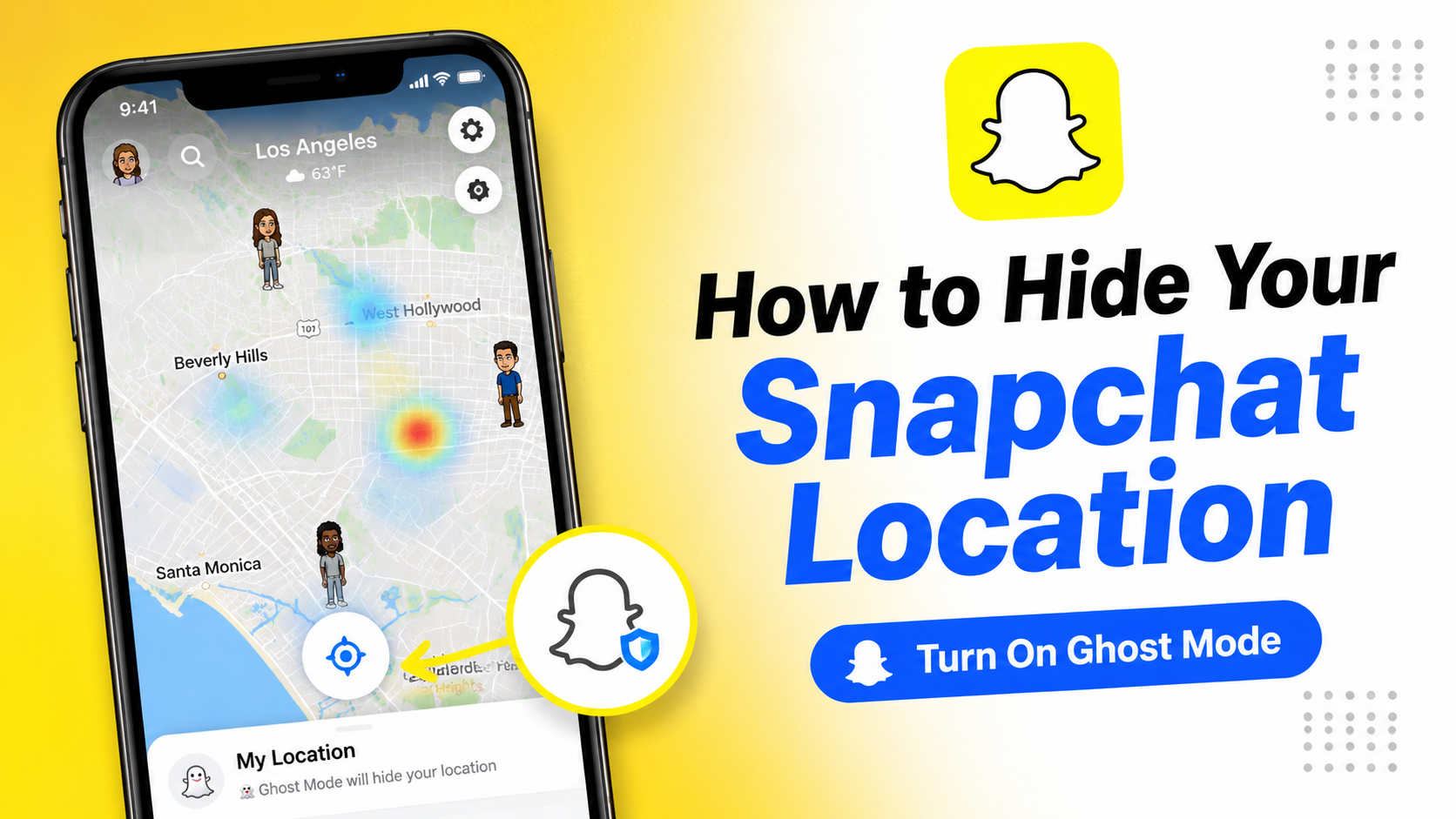
Have you ever opened Snapchat’s Snap Map and suddenly realized that your friends could see where you were? For some people, this is a useful feature. You can see where your friends are, share your location with people you trust or use the map to explore places and Snaps around you. But not everyone wants their location visible.
If you did rather keep your whereabouts private, Snapchat has a feature called Ghost Mode. When Ghost Mode is enabled, your location won’t be visible to other Snapchatters on Snap Map. You can still use Snapchat normally and you can turn Ghost Mode off whenever you want.
In this article, we will show you how to turn on Ghost Mode on Snapchat, how to hide your location from specific friends, what Ghost Mode actually does and what it doesn’t do.
📝Quick answer: Open Snapchat, go to Snap Map → Settings (⚙️) → Ghost Mode and turn it on.
What Is Ghost Mode on Snapchat?
Ghost Mode is Snapchat’s location privacy feature. When you turn it on, your location is hidden from other people on Snap Map. You can still open Snap Map and use the map yourself but your friends won’t be able to see your location there.
Snapchat says that your location can still be shared with Snapchat itself while Ghost Mode is enabled. In other words, Ghost Mode hides your location from other Snapchatters but it isn’t the same thing as completely turning off location access for Snapchat.
This distinction is important because “hide my location” and “stop Snapchat from accessing my location” are two different things.
How to Turn On Ghost Mode on Snapchat
There are two different ways to enable Ghost Mode. You can turn it on directly from Snap Map or you can access the option through Snapchat’s privacy settings.
Method 1: Turn On Ghost Mode From Snap Map
This is probably the quickest method.
- Open the Snapchat app on your Android phone or iPhone.
- Click on the location icon available at the bottom left corner.
- Tap the gear icon (⚙️) at the right side bar of the screen.
- Find Ghost Mode and switch it on.
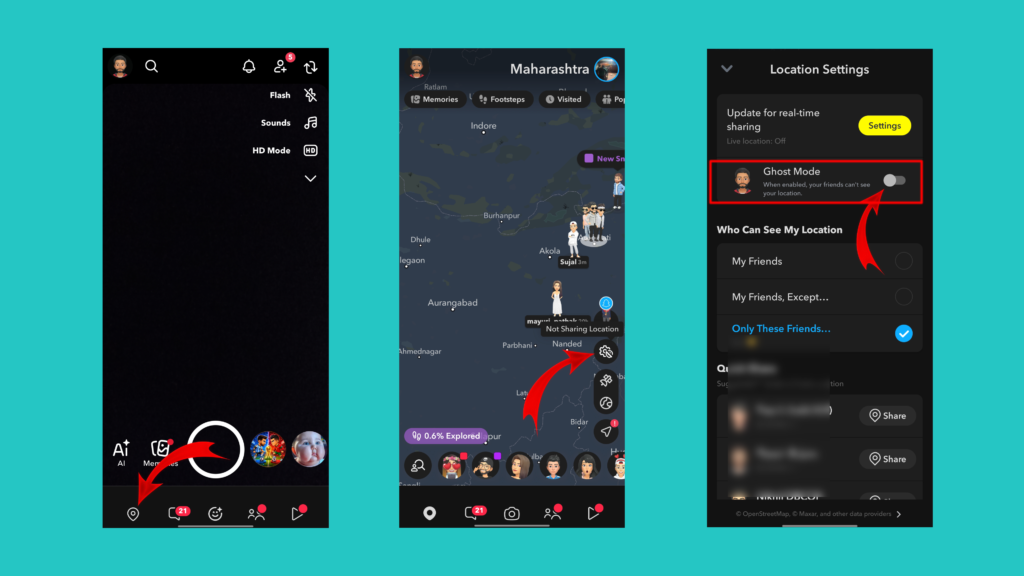
📝Note: Snapchat may ask location permission (If not already given) to turn on your device location to access map settings.
That’s it. Your location will no longer be visible to other Snapchatters on the Map.
Method 2: Turn On Ghost Mode From Snapchat Settings
You can also access the same option through the main Settings menu. The steps for the same are mentioned below.
- Open the Snapchat app and tap on your profile/Bitmoji available at the upper left corner.
- Tap the gear icon (⚙️) to open Settings.
- Scroll down to the Privacy Controls section and tap on the “See My Location” option.
- Turn on the Ghost Mode.
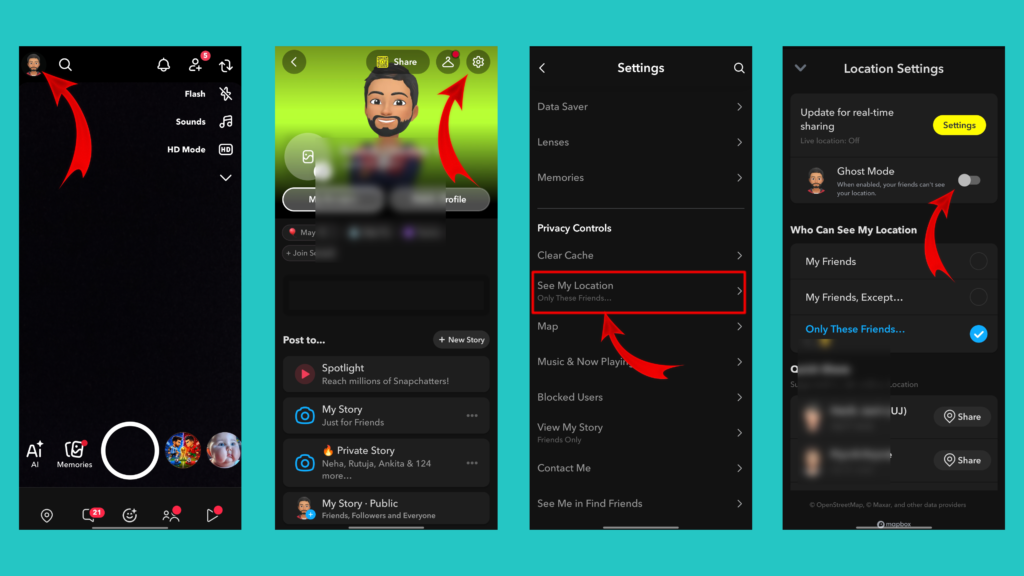
Done! This is how you can turn on the ghost mode on Snapchat.
What Happens When You Turn On Ghost Mode?
Once Ghost Mode is enabled, your location won’t be visible to other Snapchatters on Snap Map.
You can still:
- Use Snapchat normally
- Open Snap Map
- View locations and map content available to you
- Send Snaps and Chats
- Post Stories
- Turn Ghost Mode off later
Your Bitmoji can also display a blue sign with a ghost icon while you’re in Ghost Mode, although Snapchat says that this can differ if you are sharing your live location.
Related Article: Snapchat Streak Lost? Get It Back with This Steps
Does Ghost Mode Stop Snapchat From Tracking Your Location?
The simplest answer to this frequently asked question is “No, not by itself”.
This is probably the most important thing to understand about Ghost Mode. When Ghost Mode is enabled, your location is hidden from other Snapchatters but Snapchat says your location can still be shared with Snapchat itself. This allows Snapchat to continue providing Map related functionality.
So there are two different things:
Ghost Mode: Hides your location from other people on Snap Map.
Device location permission: Controls whether Snapchat has access to your device’s location.
If your goal is to stop Snapchat from accessing your location at the device level, you need to review your phone’s location permissions separately.
How to Hide Your Snapchat Location From Specific Friends
You don’t necessarily have to hide your location from everyone. Snapchat also lets you choose who can see your location.
Snapchat provides the following options to manage your location sharing settings. You can access these settings by following the same steps that are mentioned for accessing the Ghost Mode settings.
- My Friends
- My Friends, Except…
- Only These Friends…
Functionality of each of these options are explained below. This will help you choose the most suitable setting for you.
My Friends
This option lets all your Snapchat friends see your location.
My Friends, Except…
This option lets you share your location with your friends while excluding specific people. For example, if you have 50 Snapchat friends but don’t want five of them to see your location, you can exclude those friends from viewing your location.
Only These Friends…
This works the opposite way. You select the specific friends who are allowed to see your location. Snapchat doesn’t notify selected friends when you choose them for location sharing. This can be a better option than Ghost Mode if you still want a few trusted people to know where you are.
How to Turn Off Ghost Mode on Snapchat
Changed your mind and want your friends to see your location again? You can turn Ghost Mode off. After turning Ghost Mode off your Snapchat friends will be able to see your location. The simple steps to turn off these settings are mentioned below.
- Open the Snapchat app on your phone.
- Access the Snap Map from your homescreen.
- Tap the gear icon (⚙️) available at the right side bar.
- Find the “Ghost Mode” option.
- Turn the toggle off.
That’s it! Your location sharing options will then return to whatever setting you choose.
Conclusion
Snap Map can be useful but you don’t have to share your location just because the feature exists. If you did rather keep your whereabouts private, Ghost Mode is the simplest way to hide your location from other Snapchatters on the Map.
You can also take a more selective approach by choosing My Friends, Except… or Only These Friends… if you want to share your location with some people but not others.
Just remember one important point. Ghost Mode hides your location from other people but it does not completely stop Snapchat from accessing your location. Snaps submitted to Snap Map may still appear there, so be mindful of what you post publicly.
If privacy is your main concern, take a few minutes to review the rest of Snapchat’s privacy settings too. A couple of small changes can give you much better control over what you share and who can see it.
Frequently Asked Questions About Snapchat Ghost Mode
Can someone see my location if Ghost Mode is on?
Your location is hidden from other Snapchatters on Snap Map while Ghost Mode is enabled. However, Ghost Mode doesn’t mean Snapchat itself stops receiving location information.
Does Snapchat notify someone when I turn on Ghost Mode?
Snapchat’s Ghost Mode instructions don’t indicate that friends are notified when you enable it.
Can I hide my location from just one person?
Yes. You can use My Friends, Except… to exclude specific friends from seeing your location.
Yes. Snapchat provides an Only These Friends… option for selected friends.
Can I still use Snap Map in Ghost Mode?
Yes. You can still use the Map while your location is hidden from other Snapchatters.
Does Ghost Mode turn off Snapchat’s location access?
No. Ghost Mode hides your location from other Snapchatters, but Snapchat says your location can still be shared with Snapchat itself.
Can I completely disable Snap Map?
Snapchat says you can’t disable Snap Map altogether after setting it up, but you can hide your location using Ghost Mode.
Will my Snaps appear on Snap Map while I’m in Ghost Mode?
Snaps submitted to Snap Map can still appear on the Map regardless of your location-sharing setting.
Does Ghost Mode hide my Snapchat Story?
No. Ghost Mode controls location visibility. Story visibility is controlled separately.