

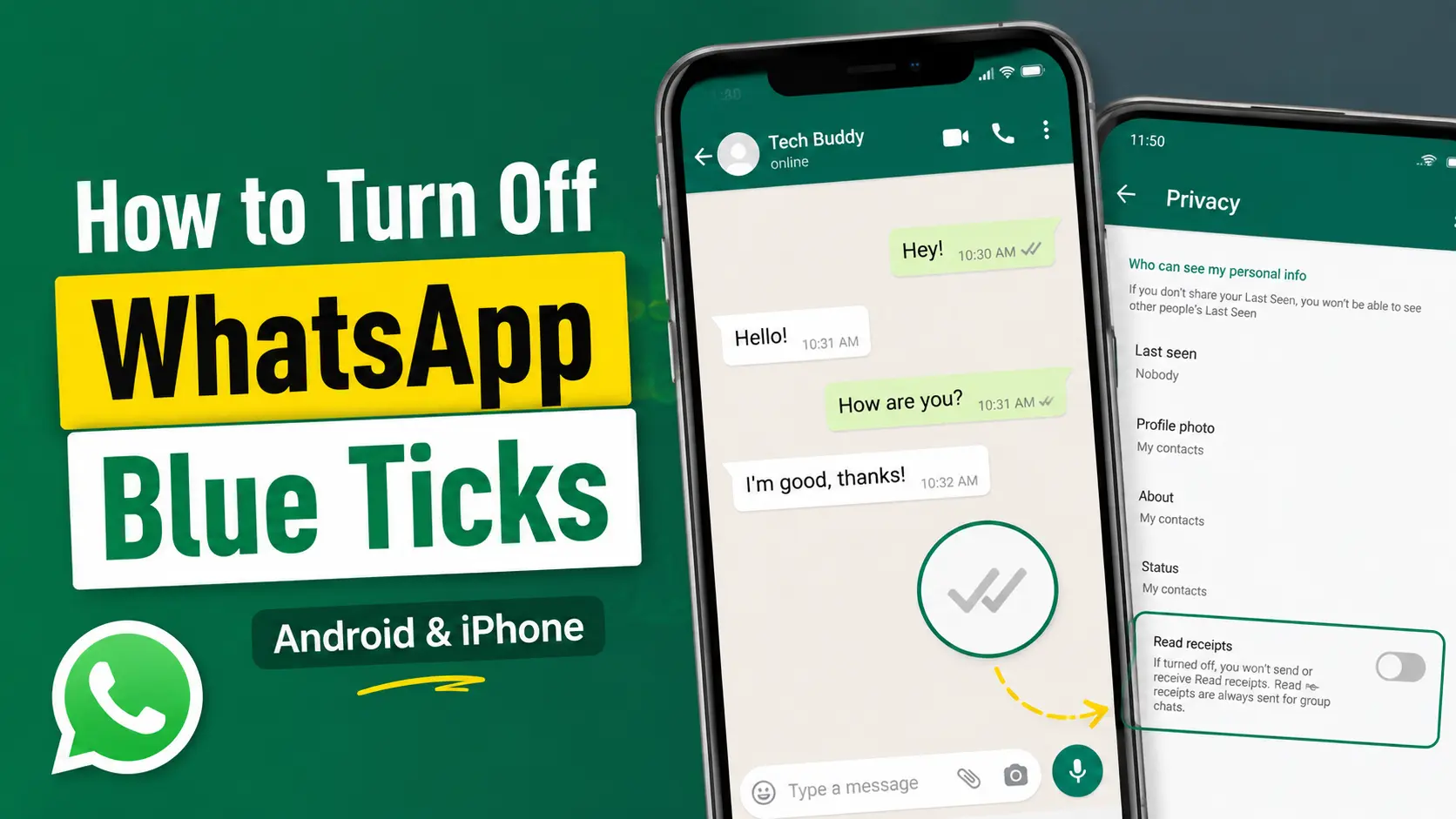
Have you ever opened a WhatsApp message and then realized that the sender can now see the blue ticks? Sometimes you simply don’t have time to reply. Sometimes you want to read a message without immediately starting a conversation. While sometimes, you just prefer to keep your WhatsApp activity a little more private. Whatever the reason, WhatsApp gives you an option to turn off read receipts (famously known as Blue Ticks).
Once you disable this setting, people in individual chats generally won’t see the blue ticks when you read their messages. However, another side of this setting is that you also won’t be able to see read receipts (blue ticks) from other people in individual chats.
In this guide article, we have tried to explain how to turn off read receipts on WhatsApp on Android and iPhone, what happens after you disable them, whether the setting works in group chats and what the different WhatsApp ticks actually mean.
💡Quick answer: Open WhatsApp, go to Settings → Privacy → find Read receipts → turn the setting off.
What Are Read Receipts (Blue Ticks) on WhatsApp?
Read receipts are the check marks that appear next to WhatsApp messages and help indicate what happened to a message. In a typical personal (one-to-one) chat, you will usually see three main states:
- One grey tick: The message has been sent from your device, but it hasn’t been delivered to the recipient’s device yet.
- Two grey ticks: The message has been delivered to the recipient but he/she hasn’t read your message.
- Two blue ticks: The message has been read.
This is why many people simply call read receipts “blue ticks.” If you don’t want your contacts to know when you have seen or read their messages, you can disable read receipts from WhatsApp’s privacy settings.
How to Turn Off Read Receipts on WhatsApp
Turning off read receipts takes only a few seconds. The setting is available on both Android and iPhone. Let’s look at the steps for each platform.
How to Turn Off Read Receipts on WhatsApp on Android
If you’re using WhatsApp on an Android phone, follow the below steps.
Step 1: Open WhatsApp on your Android phone.
Step 2: Tap the three-dot menu available at the top right corner. Then tap the “Settings” option.
Step 3: Inside Settings, select the “Privacy” option.
Step 4: Scroll through the Privacy settings until you find Read receipts.
Step 5: Tap the toggle next to Read receipts to turn it off.
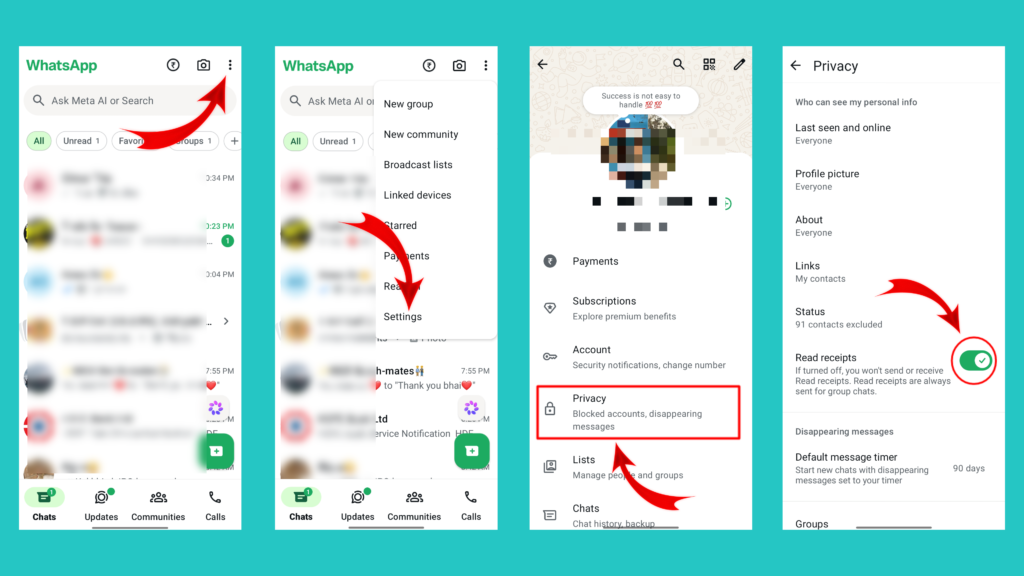
That’s it. From now on, WhatsApp will no longer send read receipts in supported individual chats when you read a message.
How to Turn Off Read Receipts on WhatsApp on iPhone
The process of turning off read receipts on an iPhone is very similar.
Step 1: Open WhatsApp on your iPhone.
Step 2: Tap on your profile photo available at the bottom-right corner.
Step 3: Open privacy settings by tapping on the “Privacy” option.
Step 4: Scroll down and find “Read Receipts” in the privacy settings.
Step 5: Tap the toggle to disable read receipts.
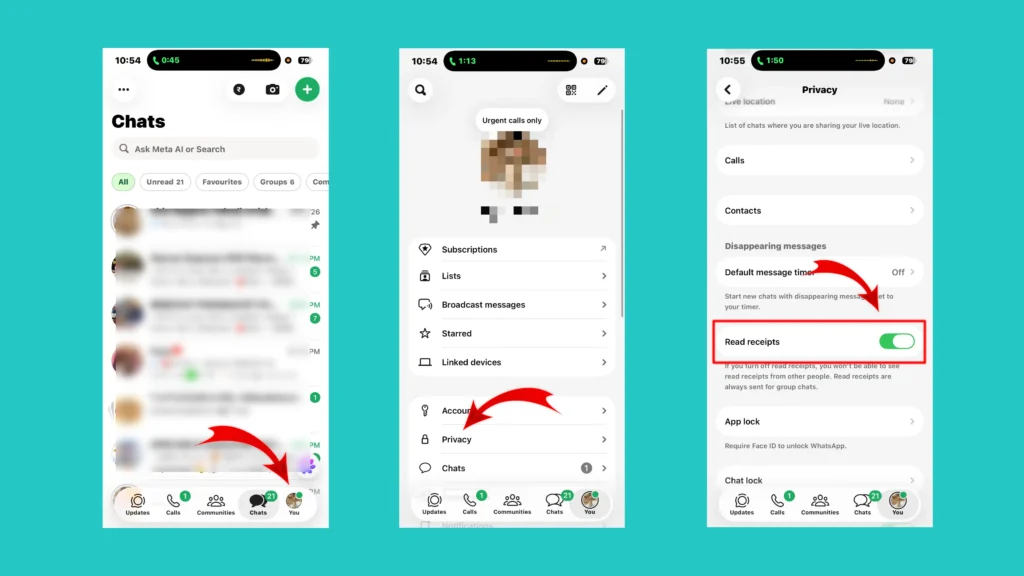
The Read Receipts is disabled now. The sender won’t see a blue tick even if you read their message.
What Happens When You Turn Off Read Receipts?
Turning off read receipts is not simply a case of hiding your blue ticks while continuing to see everyone else’s message. This setting also has another side.
When you read a message in an individual chat, the sender generally won’t see the usual blue ticks. Instead, they may continue to see two grey ticks. These two grey ticks won’t turn into blue ticks even if you reply to their message.
However, WhatsApp’s read receipt setting works both ways in individual chats. If you turn off your read receipts, you also won’t be able to see when other people have read your messages.
This is probably the biggest thing to know before changing the setting.
Can You Turn Off Blue Ticks for Only One Person?
WhatsApp’s standard Read receipts setting is not designed as a per-contact switch for individual chats. When you disable the setting, it applies to your individual chats generally.
So, for example, you can’t normally configure WhatsApp like this:
- Person A → Blue ticks on
- Person B → Blue ticks off
- Person C → Blue ticks on
Instead, the read-receipt setting is a broader privacy control. If you need more privacy from a particular person, you may need to consider other WhatsApp privacy features depending on what you are trying to hide.
Related Article: How to Hide Your Online Status on WhatsApp
Do Read Receipts Work the Same Way for Voice Messages and Group Chats?
This is one of the most common questions about WhatsApp blue ticks. The simplest answer to this question is “No”.
The read-receipt setting doesn’t work exactly the same way in group chats as it does in individual conversations. WhatsApp still provides read information in group conversations, so turning off read receipts should not be treated as a way to completely hide that you have read messages in every type of WhatsApp conversation.
Read receipts and voice-message playback receipts aren’t exactly the same thing. Turning off the normal Read Receipts setting does not mean that every type of message activity becomes invisible.
In particular, WhatsApp can still provide information about whether a voice message has been played. So if your goal is complete privacy around message activity, don’t assume that switching off one toggle hides every possible activity signal.
Read Receipts vs Last Seen vs Online Status
Read Receipts, Last Seen and Online Status are the three WhatsApp features that are often confused with one another. They actually control different things.
| Feature | What it tells people |
| Read receipts | Whether you’ve read a message |
| Last seen | When you were last active on WhatsApp |
| Online status | Whether you’re currently using WhatsApp |
| Typing indicator | Whether you’re currently typing in a chat |
So, turning off read receipts doesn’t automatically hide your Last Seen or Online status. If you want more privacy, you may want to review these settings separately.
Conclusion
WhatsApp’s read receipts are useful when you want confirmation that someone has read your message, but they aren’t for everyone. If you’d rather read messages without immediately letting the sender know, turning off Read receipts is one of the simplest privacy changes you can make.
Just remember the other side: when you hide your read receipts in individual chats, you also lose the ability to see other people’s read receipts.
And if you’re looking for more privacy, don’t stop there. WhatsApp has separate controls for Last Seen, Online status, profile photos, Status updates, groups and other parts of your account. The best approach is not necessarily to turn every privacy setting off. Instead, choose the settings that fit the way you actually use WhatsApp.
Frequently Asked Questions (FAQs)
Can I read WhatsApp messages without blue ticks?
Yes. You can turn off Read receipts in WhatsApp’s Privacy settings. In individual chats, this prevents the usual read confirmation from being shown to the sender.
If I turn off read receipts, can I still see blue ticks from others?
No. In individual chats, disabling read receipts also means you won’t see read receipts from other people.
Does turning off read receipts hide Last Seen?
No. Read receipts and Last Seen are separate privacy settings. If you want to hide your Last Seen, you need to change that setting separately.
Can I turn off read receipts for one contact?
WhatsApp’s standard Read receipts setting applies broadly to individual chats rather than giving you a simple on/off switch for each individual contact.
Do blue ticks still appear in WhatsApp groups?
Group chats have different read-receipt behavior, so turning off the standard read-receipt setting does not make you completely invisible in groups.
Can someone know I read their message if read receipts are off?
In a normal individual chat, the usual blue tick confirmation won’t be sent. However, other actions, such as replying or playing certain content may still reveal that you have interacted with the message.
Can I turn off read receipts on WhatsApp Web?
The privacy preference is associated with your WhatsApp account. If you don’t see the setting on the web version, change it from WhatsApp on your phone.