

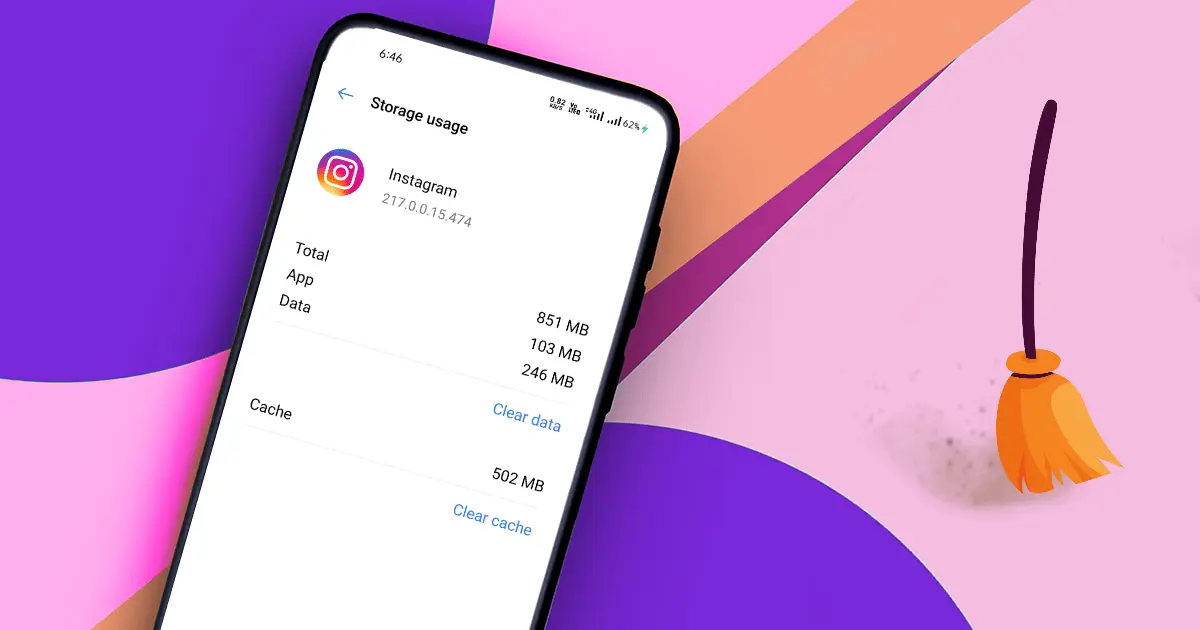
Social media apps like Instagram, Facebook, Pinterest, etc., are much ahead in this race of storing cache data to your device because all of us use social media apps for at least 2 hours daily. So when you go through the several media like photos and videos available on that app, it stores that data locally to your device in the form of cache. This cache helps to load that media faster when you look for the same photos and videos you visited earlier.
However, cached data can grow over time and take up storage space. If cached data becomes large, it may take up valuable storage space on your device. This article discusses the best ways to clear the Instagram cache on mobile and computer. You can go with the same methods to clear other apps’ cache because the steps for all the apps will be the same.
How to Clear Instagram Cache on iPhone
To clear Instagram cache on iPhone, users have options such as:
- Offloading the app
- Deleting and reinstalling the app
The key distinction is that offloading removes the app itself while retaining certain app-related data, whereas deleting the app removes its local app data.
Therefore, I would not simply say, deleting the app is the only option. That’s too absolute. I’d explain the available options and what each one does.
From Home Screen –
Step 1: Tap on the Instagram app icon on the home screen.
Step 2: A pop-up menu will open. Find the “Remove App” option and tap on it.
Step 3: Delete the app. (It will delete all your locally stored cache)
Step 4: Restart your phone.
Step 5: Re-download the Instagram app and install it.
From Settings –
Step 1: Go to the settings and tap on the “General” option.
Step 2: Look for the iPhone storage option.
Step 3: Here, you will get all the installed apps along with their storage usage.
Step 4: Find an Instagram app and delete it.
That’s it! You don’t necessarily need to clear Instagram’s cache on a fixed schedule. Consider clearing it when the app is taking up excessive storage or you are experiencing problems such as loading issues or unexpected behavior.
Related Article: How to Know If Someone Restricted You on Instagram
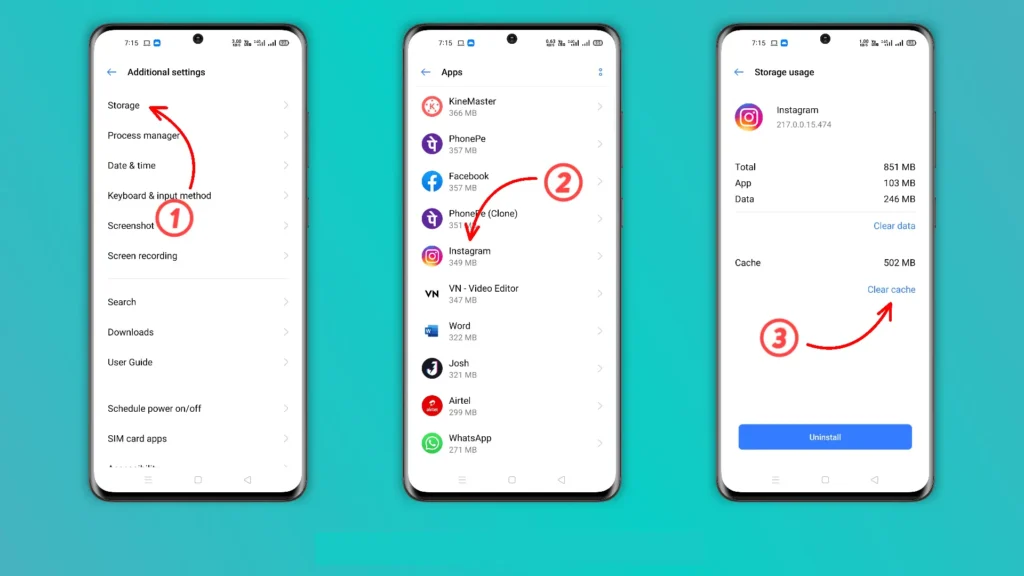
How to Clear Instagram Cache on Android
In android, you can clear the Instagram cache more easily when compared to iPhone. You don’t need to uninstall the app in the case of android. Go through the below step to clear the Instagram cache on android.
Step 1: Open the Settings app on your android phone.
Step 2: Find the “Storage” option. (In some devices, you will find this option under the “Additional settings”)
Step 3: Search for “Instagram” and tap on it.
Step 4: Tap clear cache.
The name and location of the options may be different according to the various devices.
Clear Instagram Cache Using Your Computer
Windows and Mac include several tools to aid in system’s management, but not able to clean the Instagram cache. Mac users need the help of a third-party app in order to clear the cache. At the same time, window users can do it with browsers because the window Instagram app is connected with your browser.
To clear cached Instagram files, you can clear the browser’s cached data. The exact steps depend on the browser you use, such as Chrome, Edge, Firefox, or Safari.
Keep in mind that clearing browser cache is different from clearing your Instagram search history. Clearing your search history only removes your recent searches and does not clear all cached files. Although search history is relatively easy to accumulate quickly, you will have to remove the Instagram cache more often on Windows.
When Should You Clear Instagram Cache?
You don’t need to clear your Instagram cache regularly if the app is working normally. However, clearing cached data can sometimes help when Instagram is using more storage than expected or you are experiencing certain app-related issues.
You may consider clearing your Instagram cache if:
- Instagram is taking up a large amount of storage space on your device.
- The Instagram app is running slower than usual.
- Photos or videos are not loading properly.
- You are experiencing unexpected glitches or temporary app issues.
- Some content appears outdated or doesn’t load correctly.
- You want to free up some storage space on your device.
Keep in mind that clearing the cache is not something you need to do on a fixed schedule. If Instagram is working properly and you have enough storage space, there is usually no need to clear the cache. You can try clearing it when you encounter a problem or when the app’s cached data has grown significantly.
Frequently Asked Questions (FAQs)
1. Does clearing Instagram cache delete my photos or videos?
No. Clearing the Instagram cache does not normally delete your Instagram posts, photos, videos, followers, or account information. It removes temporary files stored locally on your device. Your content that is stored on Instagram remains associated with your account.
2. Does clearing Instagram cache log me out?
Clearing the cache alone generally does not log you out of Instagram. However, clearing the app’s storage or data on Android, or deleting and reinstalling the app, may remove locally stored information and require you to log in again.
3. How often should I clear my Instagram cache?
There is no fixed schedule for clearing Instagram’s cache. You only need to consider clearing it when the app is taking up a significant amount of storage or you’re experiencing issues such as slow performance, loading problems, or unexpected glitches.
4. Is it safe to clear Instagram cache?
Yes. Clearing temporary cached files is generally safe. Instagram can create new cache files as you continue using the app. However, make sure you understand the difference between clearing the cache and clearing app data, as the latter can reset locally stored app information.
5. Does clearing Instagram cache delete my Instagram account?
No. Clearing Instagram’s cache does not delete your Instagram account. Your account and content stored on Instagram remain available when you log back into the app.